

Objective
This guide explains what a dropped pin is and how to drop a pin on Google Maps using an iPhone, Android phone, or computer. It also covers how to save, label, share, and remove a dropped pin, how dropped pins work in Apple Maps, and how businesses can improve their local search visibility.
- A dropped pin marks an exact spot on a map using GPS coordinates, even when it has no street address.
- On Android and iPhone, touch and hold the map to drop a pin. On a computer, click the spot on the map.
- Every dropped pin shows its latitude, longitude, and Plus Code, which you can copy and share.
- You can save, label, share, or get directions to a dropped pin from its location card.
- A dropped pin on the main map is temporary. Save or label it if you want to find it again.
- Apple Maps also lets you drop a pin, and links shared from it often appear as “Dropped Pin” in messages.
- Businesses can use local SEO and an accurate Google Business Profile to improve their visibility in Google Maps.
Have you ever needed to share an exact location that does not have a clear street address? It could be a meeting point, a trailhead, a friend’s house, or a place you want to visit later. Google Maps lets you mark that spot with a dropped pin so you can find it again, get directions, or share it with someone else.
Dropping a pin is simple, whether you use an Android phone, an iPhone, or a desktop computer. Once you mark a location, you can open its details to save, label, share, or navigate to it.
For businesses, accurate location information also matters. A well-maintained Google Business Profile helps customers find your business and see details such as its address, opening hours, and directions.
Did You Know?
Google reported that more than 2 billion people use Google Maps every month, according to its 20th-anniversary announcement in February 2025.
A dropped pin can mark a location even when the spot does not have a listed address. You can use it to set a meeting point, share a precise place, or plan a route to a specific entrance.
In this guide, we explain what a dropped pin is, how to drop a pin on Google Maps on Android, iPhone, and desktop, what you can do with it, how to drop a pin in Apple Maps, and how to remove a dropped pin.
Table of Contents
- What Is a Dropped Pin?
- How to Drop a Pin on Google Maps
- How to Drop a Pin in Google Maps on Android
- How to Drop a Pin on Google Maps on iPhone
- How to Drop a Pin on Google Maps on Desktop
- What Can You Do with a Dropped Pin?
- How to Drop a Pin in Apple Maps
- How to Remove a Dropped Pin on Google Maps
- Improve Your Business Visibility on Google Maps
- Final Note
- FAQs About Dropped Pins
Is Your Business Easy to Find on Google Maps?
What Is a Dropped Pin?
A dropped pin is a marker you place on a map to flag an exact location by its GPS coordinates. Unlike a business listing or street address, a dropped pin can sit anywhere: the middle of a field, a specific building entrance, or a spot on a beach. In the Google Maps app, it appears as a red pin with a “Dropped pin” card at the bottom of the screen. On desktop, it appears as a small grey pin with a card showing its coordinates.
You will most often use a dropped pin to:
- Mark a place that has no address, or the wrong address, on Google Maps
- Send someone a precise meeting point
- Save your parking spot, campsite, or delivery location
- Get directions to an exact entrance instead of a building’s center point
How to Drop a Pin on Google Maps
Dropping a pin takes only a few seconds once you know where to tap. Whether you are planning a road trip, meeting a friend, or bookmarking a hidden hiking trail, a dropped pin makes sure you never lose that location. Here is a quick overview of how it works:
- Open Google Maps on your phone or computer.
- Search for a place or zoom into the area you want.
- Touch and hold (on mobile) or click (on desktop) the exact spot.
- A pin appears along with a card showing the location details.
- From the card, you can save, label, share, or get directions.
The steps differ slightly on each device, so follow the section for your phone or computer below.
How to Drop a Pin in Google Maps on Android
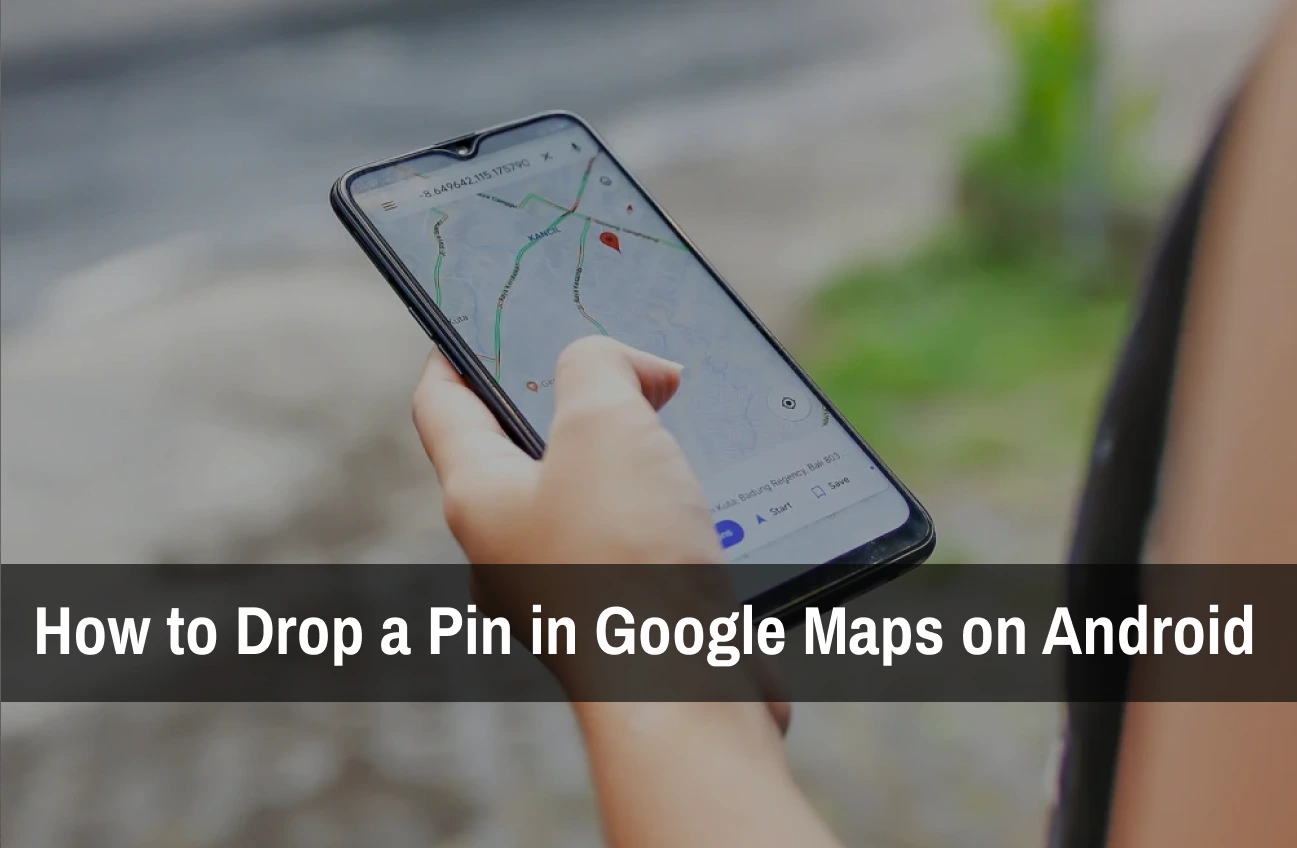
On an Android phone, you can drop a pin in Google Maps with a long press. Follow these steps:
Step 1: Open the Google Maps App
Unlock your phone and tap the Google Maps icon. Keep the app updated so you see the latest version of the interface.
Step 2: Find Your Location
You can either:
- Type an address or place name into the search bar, or
- Zoom in manually on the map with two fingers until you reach the area you want to explore.
Take your time to move around the map and find the exact spot where you want to place the pin.
Step 3: Drop the Pin
Once you have found the location, touch and hold your finger on that point. After about a second, a red pin appears and a “Dropped pin” card opens at the bottom of the screen with the location details and options to save, label, share, or get directions.
Step 4: Save or Share the Pin
After dropping the pin, you can:
- Tap Save to add it to a list such as Favorites or Want to go.
- Tap Label to give the pin a name you will recognize later.
- Tap Share to send it through WhatsApp, Messages, email, or another app.
- Tap Directions to plan a route to the pinned spot.
Want to Improve Your Local Rankings?
How to Drop a Pin on Google Maps on iPhone (iOS)
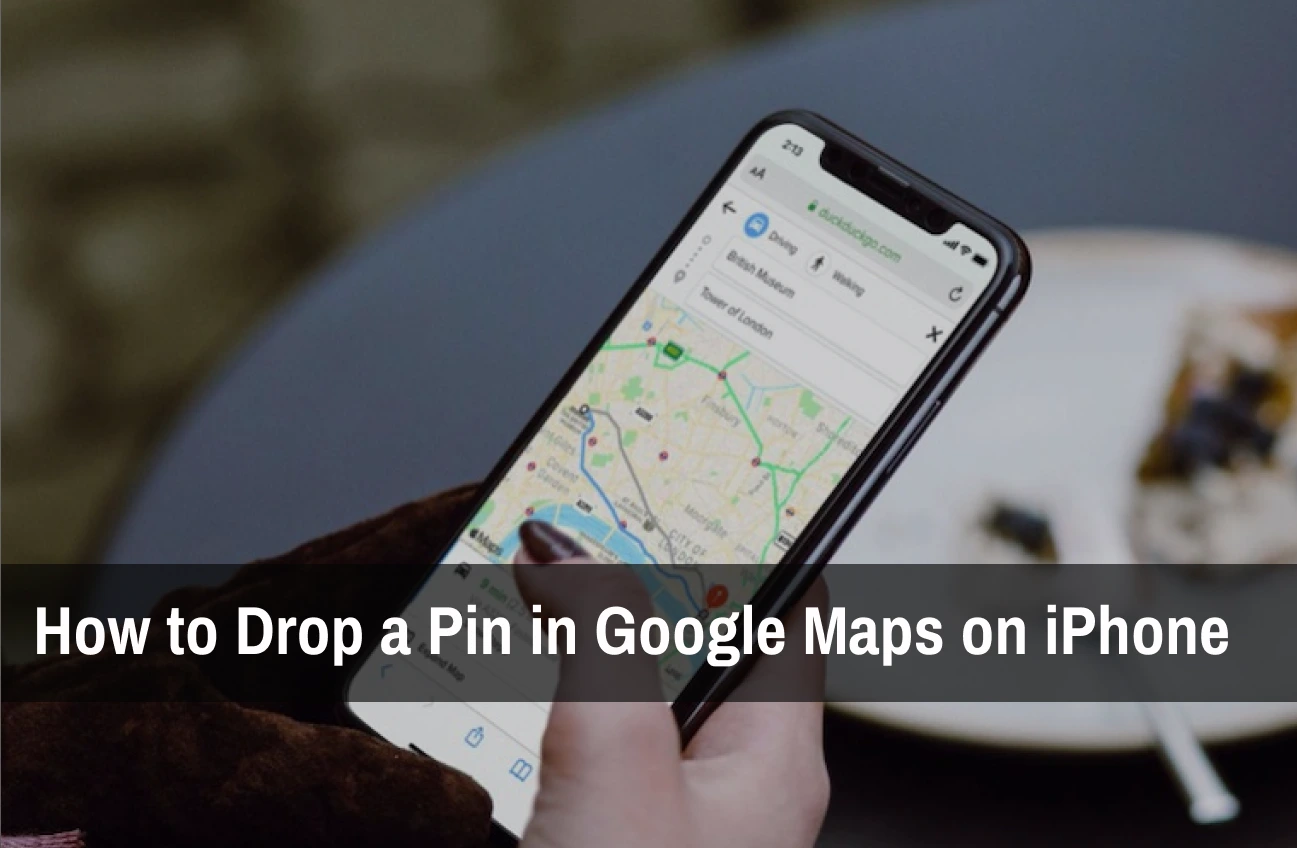
The Google Maps app on iPhone works almost the same way as on Android. Here is how to drop a pin on your iPhone:
Step 1: Open Google Maps on Your iPhone
Find the Google Maps app on your home screen and open it. Make sure it is updated so you have the latest features.
Step 2: Locate the Area
You can either search for a general place (like “Central Park, NYC”) or manually scroll around the map.
Zoom in for greater accuracy so you can place the pin exactly where you want it.
Step 3: Tap and Hold
When you find the right spot, touch and hold your finger on that location for about a second. A red pin appears on the map, along with a “Dropped pin” location card at the bottom of the screen.
Step 4: Save, Share, or Navigate
Once your pin is dropped, you have a few options:
- Tap Save to store it in Favorites or another list.
- Tap Label to name the location.
- Tap Share to send it through iMessage, WhatsApp, email, or any app you prefer.
- Tap Directions to head to that location right away.
How to Drop a Pin on Google Maps Desktop
If you are using a computer, dropping a pin on Google Maps is just as easy. Here is the process:
Step 1: Open Google Maps
Open a browser such as Chrome, Safari, or Edge and go to Google Maps. Sign in to your Google account if you want to save pins.
Step 2: Find the Spot
You can either:
- Enter a search such as “Times Square, New York” in the search bar, or
- Use your mouse to move and zoom the map manually.
Zoom in as far as you need to find the exact spot.
Step 3: Click on the Map
Left-click the spot where you want to drop the pin. A small grey pin appears, and a card at the bottom of the screen shows the location’s coordinates. Click the coordinates on that card to open the full details panel. The pin marks the exact location even if there is no address listed.
Tip: Right-click any spot on the map to see its coordinates at the top of the menu. Click them to copy them to your clipboard.
Step 4: Save or Share
In the details panel, you can:
- Click Save to add the pin to one of your lists.
- Click Share to copy a link or send it by email or message.
- Click Send to phone to open the location on your mobile device.
- Click Directions to plan your route.
What Can You Do with a Dropped Pin?
A dropped pin is more than a marker. From its location card, you can:
Share an Exact Location
Tap Share to send a link to the pin. The person you send it to can open the exact spot in Google Maps and get directions, even if it has no address.
Save It to a List
Tap Save and choose a list such as Favorites, Want to go, or a custom list. Saved pins stay on your map across your signed-in devices.
Add a Label
Tap Label and type a name such as “Parking spot” or “Site entrance.” Labeled places are easy to search for later.
Copy the Coordinates or Plus Code
Every dropped pin shows its latitude, longitude, and Plus Code. Copy these to share the location with someone who does not use Google Maps or to enter it into another app.
Measure Distance
Use Measure distance to check how far the pin is from other points on the map. On desktop, right-click the map and choose Measure distance.
Add a Missing Place
If the pin marks a business or landmark that is missing from Google Maps, use Add a missing place to suggest it. Google reviews the details before publishing.
Pin Multiple Locations
The main map shows one dropped pin at a time. To work with several pins, save each one to a list or create a custom map in Google My Maps.
How to Drop a Pin in Apple Maps
If you use Apple Maps on an iPhone, iPad, or Mac, you can drop a pin there too. This is why shared locations often appear as “Dropped Pin” in iMessage.
On iPhone or iPad
- Open Apple Maps and find the area you want.
- Touch and hold the exact spot on the map.
- A pin appears with a “Dropped Pin” card showing the address or coordinates.
- Use the card to get directions, share the location, or add it to your Favorites or Guides.
On Mac
- Open Maps and find the location.
- Control-click (or right-click) the spot and choose Drop Pin.
- Click the pin to see its details and options to share or get directions.
What Does "Dropped Pin" Mean in a Text Message?
When someone sends you a “Dropped Pin,” they have shared a specific map location with you. Tap it to open the spot in Apple Maps or Google Maps and get directions.
How to Remove a Dropped Pin on Google Maps
Placed a pin in the wrong spot, or no longer need it? A temporary dropped pin is easy to clear, and saved or labeled pins can be removed from your lists.
Remove a Dropped Pin on Android or iPhone
- Tap the X in the search bar at the top of the screen, or
- Swipe the location card down and tap anywhere else on the map.
The temporary pin disappears from your map.
Remove a Dropped Pin on Desktop
- Click the X on the location card at the bottom of the screen, or
- Click anywhere else on the map to replace the pin.
Clearing a temporary dropped pin does not delete places you have already saved.
Remove a Saved or Labeled Pin
Saved and labeled pins stay on your map until you remove them:
- Saved pin: Open the You (or Saved) tab, choose the list, tap the three-dot menu next to the place, and select Remove.
- Labeled pin: Tap the labeled place, choose Edit label, delete the label text, and confirm.
Ready to Get More Local Customers?
SEO Discovery helps businesses improve their Google Business Profile, reviews, and local citations to stand out in Google Maps results.
Improve Your Business Visibility on Google Maps
Dropped pins help people find exact spots, but businesses need more than a pin to appear when customers search nearby. Your Google Business Profile, reviews, and local SEO signals all influence how visible you are in Google Maps.
SEO Discovery helps local businesses, from cafes to real estate agencies, attract more customers through search and maps. Here is how we can help:
- Local SEO: Our local SEO services help your business appear when people search for related services in your area.
- Google Business Profile Optimization: We keep your Google Business Profile accurate and complete so it can show up in relevant Maps searches.
- Targeted SEO Campaigns: We build custom SEO strategies to bring more relevant traffic to your website and store.
- Performance Tracking: We monitor how your location performs in search so you can make data-driven decisions to improve your visibility.
Final Note
A dropped pin is one of the simplest and most useful features in Google Maps. With a quick tap or click, you can mark an exact spot, save it for later, share it with others, and get directions, even when there is no street address.
Now that you know how to drop, use, and remove a pin on Android, iPhone, desktop, and Apple Maps, you can navigate and share locations with confidence.
If you run a business, being easy to find on Google Maps matters even more. SEO Discovery helps businesses improve their Google Business Profile and local rankings so more nearby customers can find them. Explore our local SEO services to see how we can help.
Want Your Business to Stand Out on Google Maps?
FAQs About Dropped Pins
A dropped pin is a marker you place on a map to flag an exact location by its GPS coordinates, even when the spot has no street address or business listing.
It means someone shared a specific map location with you. Tap it to open the spot in Google Maps or Apple Maps and get directions.
Drop the pin, tap Share on the location card, and choose an app such as Messages, WhatsApp, or email. On desktop, click Share and copy the link.
Tap the X in the search bar on mobile, or the X on the location card on desktop. To remove a saved pin, open the list, tap the three-dot menu next to the place, and select Remove.
The main map shows one dropped pin at a time. Save each pin to a list, or use Google My Maps to add many pins to one custom map.
Yes. The location card shows latitude, longitude, and a Plus Code. Tap or click the coordinates to copy them.
Open the You (or Saved) tab in Google Maps, choose the list you saved it to, and tap the place. Labeled pins can also be found by searching for the label name.
If you tap an existing business or landmark, Google Maps selects that place instead of dropping a pin. Zoom in further and touch and hold an empty spot on the map.
Not in the main Google Maps app. You can choose an icon for saved lists, or fully customize pin colors and icons in Google My Maps.
Yes, it marks the exact point you tap or click. Zoom in and use Satellite view for accuracy down to a single building entrance.